Browse built-in items or create your own — it's all in the Catalog.
📱 Screenshots show the iPhone app. The Android app works the same way — only small platform details differ.
The Catalog (opened from the top of the List screen) holds every item you can add to your list — 936 built-in items across 9 categories, fully translated in English, German, and Spanish, plus any custom items you create.
Tap on the Catalog Tab at the bottom left of the main screen.
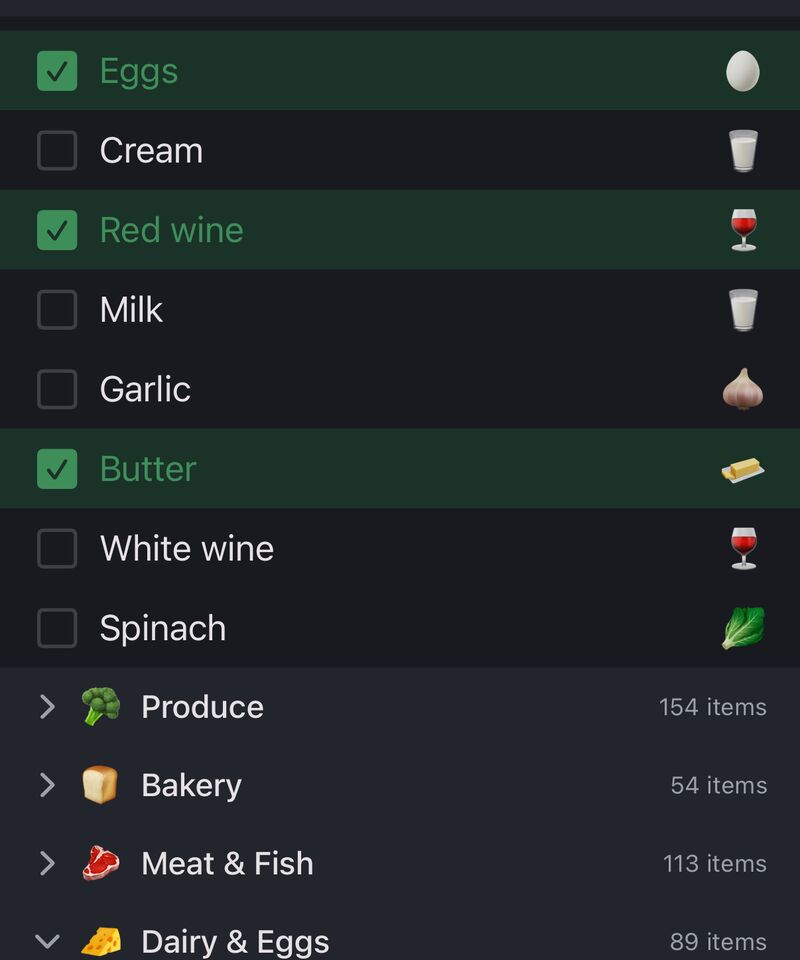
Items are organised into 9 categories. Tap a category name to expand it and see all the items inside. Tap again to collapse it.
With this many items, the bigger categories are split into subcategory groups — inside Produce you'll find Fruit, Vegetables, Fresh Herbs and so on, each collapsible with its own little header. An expand/collapse-all button sits above the list when you want the bird's-eye view.
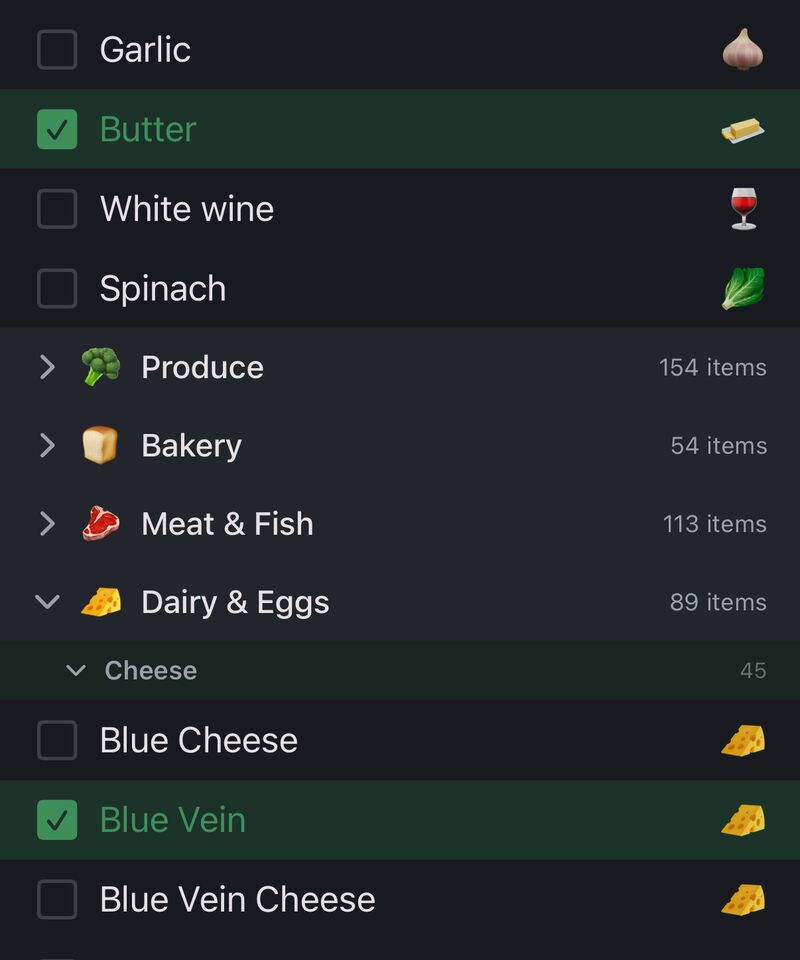
At the very top of the Catalog sits a ⭐ Most Often Used section. It learns from your shopping history: the things you buy most bubble up here automatically, so your weekly staples are one tap away without browsing or searching.
There's nothing to configure — the more you shop, the better it gets.
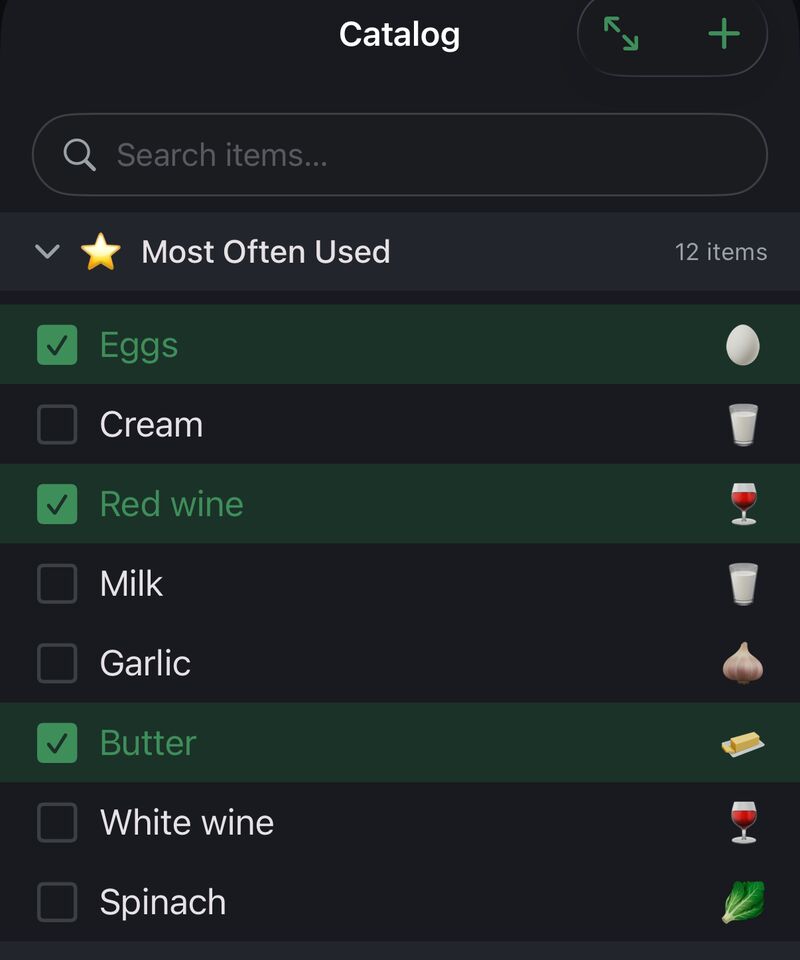
Tap any item in the Catalog and it instantly jumps to your To Buy list. There's no confirmation step — just tap and it's there.
Tapping an item that's already in your To Buy list has no effect (it won't add a duplicate).
The search bar at the top of the Catalog filters all items in real time as you type. You don't need to know which category something is in — just start typing and the results appear instantly.
If you know what you want, typing in the search bar is much faster than browsing categories. Two or three letters is usually enough.
Can't find what you need in the built-in list? You can create your own item in seconds.
Items added by barcode scan or from a recipe join the catalog the same way, automatically — scan a product once and it's a one-tap item forever after.
Your custom items appear in the Catalog just like built-in ones. To delete a custom item, go to ⚙️ Settings → Catalog section at the bottom of the screen.
Built-in items cannot be edited or deleted.
Custom items are stored on your device and included in your backups. They won't disappear when you update the app.
Related guides: Your Shopping List · Barcode Scanner · Voice Input
 Tim Weston Apps