Every trip saved. Reuse, revisit, and star what you shop most.
📱 Screenshots show the iPhone app. The Android app works the same way — only small platform details differ.
Every time you tap Done at the end of a shop, the trip is saved automatically as a card on the History tab — date, items, prices if you've scanned the receipt, and any notes you add. It's your complete shopping record, and the raw material for reusing lists.
Open the History tab (middle tab at the bottom). Trips are listed most recent first; tap any card to expand it and see every item from that shop.
Right after you finish a shop, the app jumps here for you — with the brand-new card already expanded so you can check it over or scan the receipt straight away.
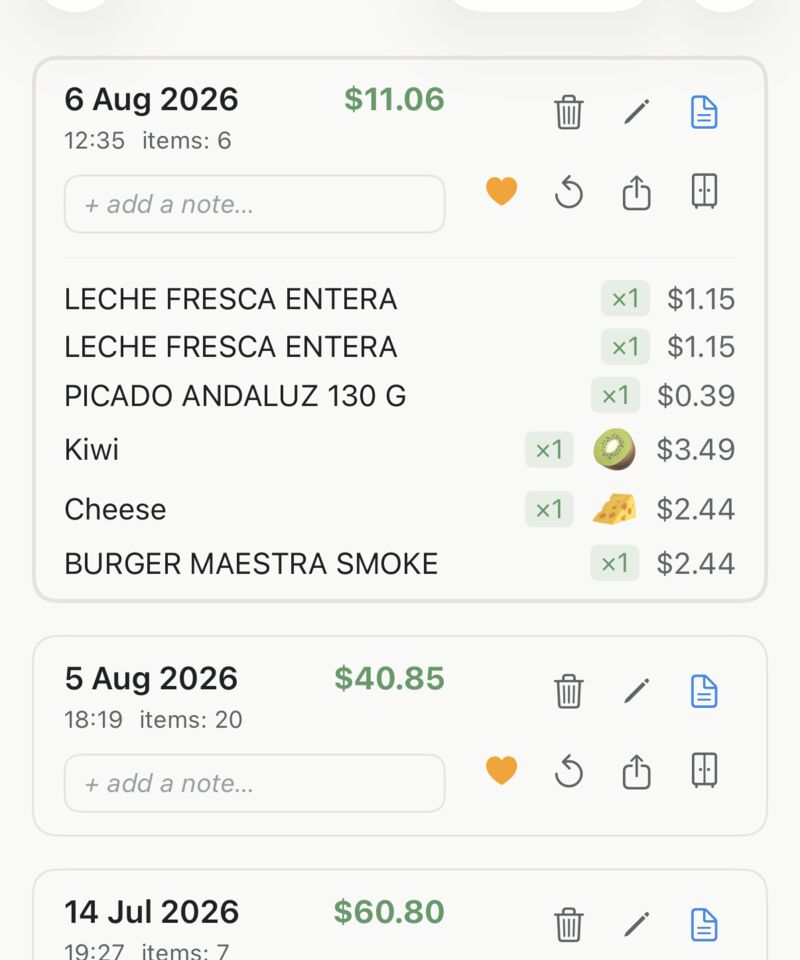
Tap the Reuse List button on any past trip to copy all its items onto your current list. Perfect for regular shops where you buy mostly the same things each week.
If your current list already has items, you'll be asked whether to:
Adds the past trip's items to whatever is already on your current list. Nothing is removed.
Clears your current list first, then loads the past trip's items. Starts fresh.
Tap the ★ star icon on any trip to mark it as a favourite. Starred trips are pinned to a Favourites section at the top of History so they're always easy to find.
Ideal for recurring trips — your weekly big shop, a specific market, or a seasonal list you come back to every year.
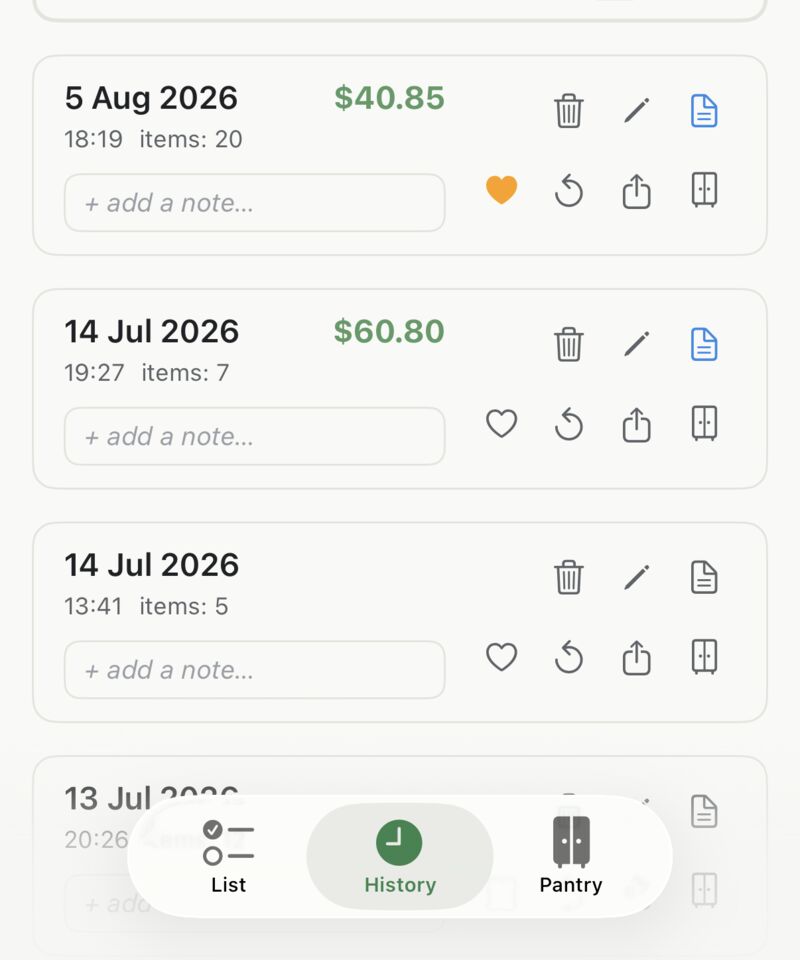
Each card has a small "+ add a note…" row. Tap it to give the trip a title and a longer note — "Birthday party shop", "the cheap butcher on the high street", whatever future-you will want to know.
Once saved, the title shows on the card; tap it to read the full note, with an Edit button right there.
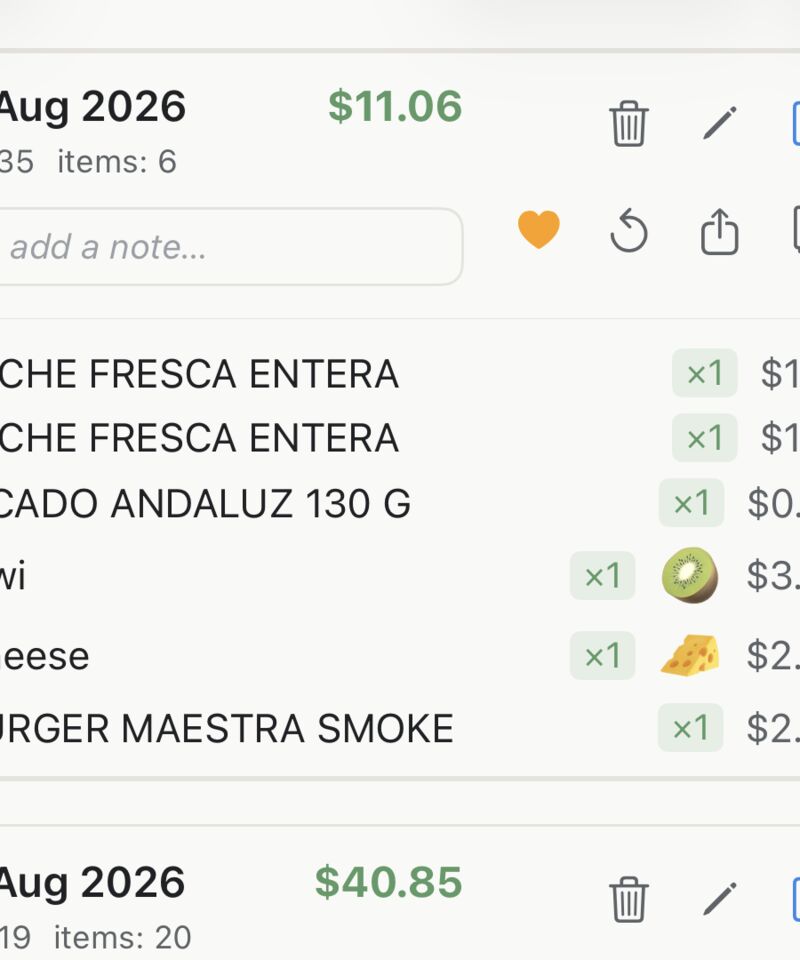
Tap the pencil icon on any card to open Edit card. History isn't set in stone:
The notepad icon on each card scans a photo of your receipt and reads the item prices and total straight onto that trip — entirely on your phone. There's even a "Log a shop from a receipt" button for shops you did without the app.
That whole flow has its own guide: Receipts & Prices.
Your history is stored on your device. To keep it safe across phone changes or accidental deletions, set up automatic backups.
Related guides: Receipts & Prices · Your Shopping List · Backup & Export
 Tim Weston Apps